# Akeneo

For your PIM to work correctly, you first need to connect it to the data flows that are coming from your ERP, DAM, or even MDM. Once your products are enriched into the PIM, you need them to be delivered to all your channels, such as syndication, e-commerce, or publishing platforms, like EasyCatalog.

## Configuring Akeneo

In order to export data to EasyCatalog, first you need to create a `connection` of type `Data destination`.

### 1. Create a connection <a href="#how-to-export-your-assets-with-the-export-jobs" id="how-to-export-your-assets-with-the-export-jobs"></a>

Here are the simple steps to create a connection:

1. Click on `Connect`.
2. Then on `Connection settings`.
3. Click on `Create`.
4. In the Label field, enter the name of your connector. For example, write `EasyCatalog` or `EasyCatalog connector` if you wish to connect your PIM to EasyCatalog.\
   \&#xNAN;***Sidenote**: the code of the connection is automatically generated based on the label.* *You can keep it as is or change it. It's up to you!*
5. Choose the [flow type](https://help.akeneo.com/v7-connect-your-pim/v7-monitor-your-data-flows) of your connection.

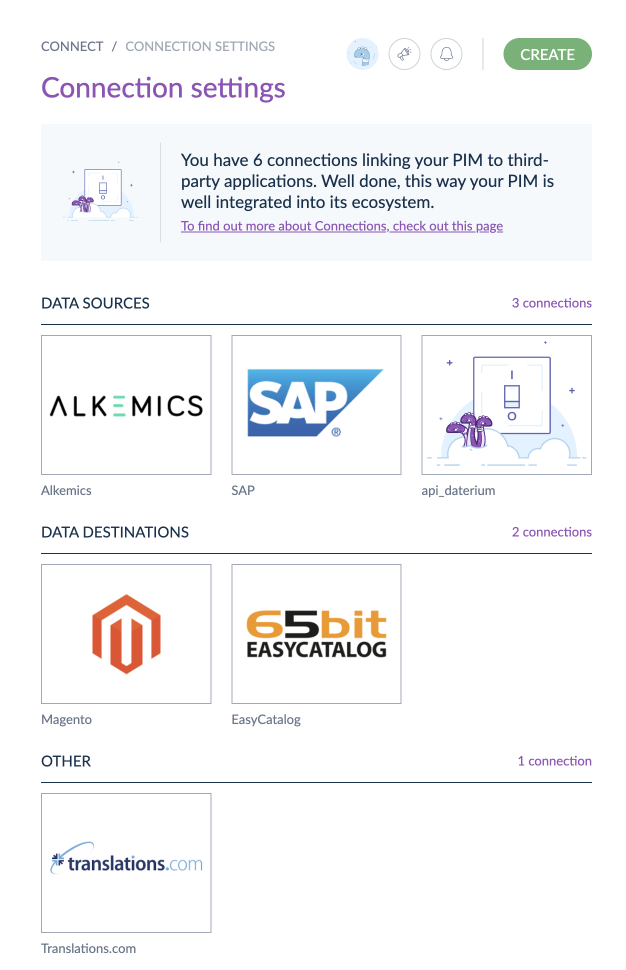
<figure><img src="https://1939597359-files.gitbook.io/~/files/v0/b/gitbook-x-prod.appspot.com/o/spaces%2FazTsFGbHKYYVlYs8LIQv%2Fuploads%2F63EG5jIfCus9xes6eOKX%2Fconnection_settings.png?alt=media&#x26;token=8d90ad16-14fe-4a3e-8996-4a540a7b6600" alt="Connection settings"><figcaption><p>Connection Settings</p></figcaption></figure>

Once your connection is created, you'll be able to assign it a picture in order to easily see which connection it refers to. For example, if your connection represents your connection to EasyCatalog, you may want to put a picture of the EasyCatalog logo, exactly like in the screenshot below.

<figure><img src="https://1939597359-files.gitbook.io/~/files/v0/b/gitbook-x-prod.appspot.com/o/spaces%2FazTsFGbHKYYVlYs8LIQv%2Fuploads%2FFidGVjTwiAQQhvu0fzi4%2Feasycatalog_channel.png?alt=media&#x26;token=29386b06-9695-4133-9e7e-02003ec81a3a" alt="EasyCatalog channel imagen"><figcaption><p>EasyCatalog connection image</p></figcaption></figure>

After creating the connection, you'll also be given a set of credentials to authenticate your connector.

### 2. Choose your flow type

When creating or updating a connection, you must define a [flow type](#user-content-fn-1)[^1]. It will determine the way your connection flows are monitored in the `data flows dashboard`.

This flow type has three available options you'll have to choose from. To create an EasyCatalog connection, you need to choose a **destination connection** flow type.

{% hint style="info" %}
If you choose this option, the Data flows dashboard will focus on the data pushed outside Akeneo via this connection.
{% endhint %}

### 3. Grab your credentials <a href="#grab-your-credentials" id="grab-your-credentials"></a>

Whenever you create a connection, Akeneo automatically generates a set of credentials for you. These credentials are necessary if you want to make any API calls to the PIM or, in our case, use the `Akeneo Enterprise Data Source` in EasyCatalog.

These credentials consist of 4 different strings:

* the `client id`,
* the `secret`,
* the connection `username`,
* the connection `password`.

To access the client id, the secret and the username, go to `Connect > Connection settings` and click on the connection you want to see the credentials. They are displayed on the right side of the screen in the `Credentials` column.

{% hint style="warning" %}
The password is only shown once to you after the connection creation. So, make sure you save it somewhere.
{% endhint %}

### 4. Set the connection permissions

For each connection, you can define a set of permissions that can restrict access to:

* some API endpoints. In this case, those permissions are defined thanks to your `connection user role`.
* some parts of your product catalog. In this case, those permissions are enforced thanks to the `connection user group`. Note that they are only available in the **Enterprise Edition**.

## Configuring the EasyCatalog Akeneo Data Source

EasyCatalog Enterprise module provides two Akeneo Data Sources: Akeneo and Akeneo extended. Both offer the same functionality but the extended version adds two additional filter options: by product **Status** and by product data **Completeness**.

### Install the Akeneo Data Source provider

Select `File> New > EasyCatalog Panel > Manage Enterprise Data Providers`. The [Manage Enterprise Data Providers](https://easycatalog.nousmedis.com/setting-up-your-data/2.-importing-your-data/enterprise-data-provider/managing-enterprise-data-providers) dialog box will open. Select the `Akeneo` or `Akeneo Extended` data provider from the list and click the `Install` button.

{% hint style="info" %}
The `Akeneo Extended` data provider offers two additional options: `Status` —allows you to filter imported products by its status, All, enabled or disabled— and `Complete` —you can import all productos or only the ones marked as completed by Akeneo.
{% endhint %}

### Create a new Akeneo Data Source

Configuring a data source is a relatively simple task and principally involves specifying various values within the `Akeneo Data Source Configuration` dialog box:

<figure><img src="https://1939597359-files.gitbook.io/~/files/v0/b/gitbook-x-prod.appspot.com/o/spaces%2FazTsFGbHKYYVlYs8LIQv%2Fuploads%2F9ecpvoAFWSR5MnbYcYNM%2Fakeneo.png?alt=media&#x26;token=26ef6d88-c4d7-42ab-8bf9-38c7885a8cbc" alt="Akeneo Data Source dialog box"><figcaption><p>New Akeneo Data Source dialog box</p></figcaption></figure>

#### <img src="https://1939597359-files.gitbook.io/~/files/v0/b/gitbook-x-prod.appspot.com/o/spaces%2FazTsFGbHKYYVlYs8LIQv%2Fuploads%2F1GH0QfBuwNibxgzpUHoE%2F1_bullet.svg?alt=media&#x26;token=6615bd85-e405-46e9-a0f4-d3ffee28ce11" alt="1" data-size="line"> Name

As with all EasyCatalog data sources, the data source name must be unique and is used to identify your new data source. The name entered here will appear on the `File→New→EasyCatalog Panel` menu.

#### <img src="https://1939597359-files.gitbook.io/~/files/v0/b/gitbook-x-prod.appspot.com/o/spaces%2FazTsFGbHKYYVlYs8LIQv%2Fuploads%2F7G9T9lhD01tHtMvF8EsY%2F2_bullet.svg?alt=media&#x26;token=8e9b910c-fec2-4ff7-bcbd-eb44e01aadda" alt="2" data-size="line"> Server URL

Enter the URL of the Akeneo server. EasyCatalog will connect to it when you create the data source and on subsequent `Synchronize with Data Source` operations.

#### <img src="https://1939597359-files.gitbook.io/~/files/v0/b/gitbook-x-prod.appspot.com/o/spaces%2FazTsFGbHKYYVlYs8LIQv%2Fuploads%2FFv2WAJhRuxtfE31fGUfr%2F3_bullet.svg?alt=media&#x26;token=a9946810-cf7a-4978-95c6-2af5c235a9c5" alt="3" data-size="line"> Client ID, Secret, User and Password

Enter the credentials Akeneo created for your when [configuring the connection](#grab-your-credentials).

#### <img src="https://1939597359-files.gitbook.io/~/files/v0/b/gitbook-x-prod.appspot.com/o/spaces%2FazTsFGbHKYYVlYs8LIQv%2Fuploads%2FejIpY1X37I2eBb0EBmTV%2F4_bullet.svg?alt=media&#x26;token=684db242-fc48-4726-af9b-2d89deec17e7" alt="4" data-size="line"> **Create Attribute Label Columns**

Check this option if you want to import the field label name for each attribute. This allows you, for example, to use the label name in your catalog and automatically translate it into another language if you decide to import another language from Akeneo.

#### <img src="https://1939597359-files.gitbook.io/~/files/v0/b/gitbook-x-prod.appspot.com/o/spaces%2FazTsFGbHKYYVlYs8LIQv%2Fuploads%2F3uy0Magh9oZO5Q6hahIN%2F5_bullet.svg?alt=media&#x26;token=07b0b075-88d3-4f90-b869-23c5d5f08688" alt="5" data-size="line"> Include products in subcategories

Check this option to import all the products for the main categories and also the ones for each subcategory.&#x20;

#### <img src="https://1939597359-files.gitbook.io/~/files/v0/b/gitbook-x-prod.appspot.com/o/spaces%2FazTsFGbHKYYVlYs8LIQv%2Fuploads%2F4HsLJdrIyKAm1sbfDbfd%2F6_bullet.svg?alt=media&#x26;token=401abb85-3a32-47bb-a3c6-52e31ba11699" alt="6" data-size="line"> Duplicate product per category

If a product belongs to more than one category and you want to display it in your catalog once per category, check this option. EasyCatalog will modify the Akeneo product id by concatenating[^2] the `product id` and the `category id` fields.

#### <img src="https://1939597359-files.gitbook.io/~/files/v0/b/gitbook-x-prod.appspot.com/o/spaces%2FazTsFGbHKYYVlYs8LIQv%2Fuploads%2FJyefjvV08vQIagBswyUk%2F7_bullet.svg?alt=media&#x26;token=959c3e26-134a-4b8e-872d-6a08bf098fe2" alt="7" data-size="line"> Include entities

Check this option to import the [Akeneo reference entities](https://api.akeneo.com/concepts/reference-entities.html) into yor data source.

#### <img src="https://1939597359-files.gitbook.io/~/files/v0/b/gitbook-x-prod.appspot.com/o/spaces%2FazTsFGbHKYYVlYs8LIQv%2Fuploads%2FQK17JQwhll64qRuL0bDk%2F8_bullet.svg?alt=media&#x26;token=dfc87574-6cc5-4862-8485-27b3ba1b454d" alt="8" data-size="line"> Initialize

Click the `Initialize` button to test your Akeneo server connection using the provided credentials and initialize the Akeneo data provider. If the connection is succesful, the `Default locale`, `Channel`, `Category` and `Locale` will be editable and populated with your Akeneo values.&#x20;

#### <img src="https://1939597359-files.gitbook.io/~/files/v0/b/gitbook-x-prod.appspot.com/o/spaces%2FazTsFGbHKYYVlYs8LIQv%2Fuploads%2FHUqZIyJxMkuVuUEV8W3D%2F9_bullet.svg?alt=media&#x26;token=dca64de3-a5a9-442f-9d65-191fca1b56a3" alt="9" data-size="line"> Default locale

The `Default locale` is used to obtain the correct set of categories and channels. If `All` is selected, then the code will be displayed in the `Category` and `Channel` menu.

#### <img src="https://1939597359-files.gitbook.io/~/files/v0/b/gitbook-x-prod.appspot.com/o/spaces%2FazTsFGbHKYYVlYs8LIQv%2Fuploads%2FtRMrVxkNt8UnA9VqWhcD%2F10_bullet.svg?alt=media&#x26;token=4aa692df-ac7e-4299-98b2-f5f7effb142a" alt="10" data-size="line"> Channel

Select a [channel](#how-to-export-your-assets-with-the-export-jobs) name to import the products for a specific channel. Usually you will define one different channel for each output: digital, print, ecommerce, web, etc.&#x20;

#### <img src="https://1939597359-files.gitbook.io/~/files/v0/b/gitbook-x-prod.appspot.com/o/spaces%2FazTsFGbHKYYVlYs8LIQv%2Fuploads%2FvD4yYJvi2FHZMNSA5SGu%2F11_bullet.svg?alt=media&#x26;token=f3a14934-25f4-4c17-b686-a0a675f18d33" alt="11" data-size="line">Category

Select a category name if you only want to retrieve the products for that category; select `All` to import all the products for all the categories.

#### <img src="https://1939597359-files.gitbook.io/~/files/v0/b/gitbook-x-prod.appspot.com/o/spaces%2FazTsFGbHKYYVlYs8LIQv%2Fuploads%2FWBBffTWyd3utcTcqEOaN%2F12_bullet.svg?alt=media&#x26;token=651eb228-59a2-4b59-871b-28f059b3c5b7" alt="12" data-size="line">Locale

Select `All` if you want to import each field multiple times, once per language. EasyCatalog will concatenate the two letter [Country Code Language](https://www.fincher.org/Utilities/CountryLanguageList.shtml) to the field name. For example, the `description` field will be imported twice if your Akeneo PIM has two locales, one for Spain's Spanish (`description_es_ES`) and another for USA English (`description_en_US`).

## Group you products by category

Use the EasyCatalog Data panel `Group...` menu option to group your products by category.This will greatly improve the usability of your data and will allow further pagination options.

<figure><img src="https://1939597359-files.gitbook.io/~/files/v0/b/gitbook-x-prod.appspot.com/o/spaces%2FazTsFGbHKYYVlYs8LIQv%2Fuploads%2FChjWVz91BOmZPGjpZZ6Z%2Fakeneo_data_panel.png?alt=media&#x26;token=8c142ea4-6d74-4eff-bec3-6a9d5baa6363" alt="Akeneo data panel"><figcaption><p>Akeneo data panel grouped by category</p></figcaption></figure>

[^1]: The flow type is a central concept in the connection notion. It allows you to characterize the data flows that will interact with your PIM. More precisely, it allows indicating the **direction** of a given flow.

[^2]: Joining or combining two or more words or strings.
