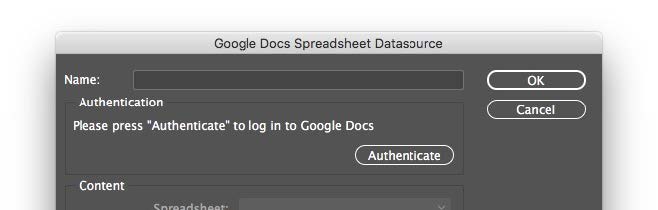
Authenticate with your Google Docs account
Authenticate with your Google Docs account
 ###
###  Name
The name wich will be used to identify this data source.
###
Name
The name wich will be used to identify this data source.
###  Authentication
Once authenticated, your Google Docs user name will be shown here. Occasionally it is necessary to re-authenticate: the can happen, for example, if you remove EasyCatalog’s access to your Google Docs from your Google account.
###
Authentication
Once authenticated, your Google Docs user name will be shown here. Occasionally it is necessary to re-authenticate: the can happen, for example, if you remove EasyCatalog’s access to your Google Docs from your Google account.
###  Content
Select the name of the spreadsheet you would like to import using the `Spreadsheet` pop-up. You can then choose to import an individual sheet from inside of the spreadsheet using the `Sheet` pop-up. Alternatively you can select `All Sheets` to import data from all sheets within the spreadsheet. A `Sheet Name` field will also be created and populated with the name of the sheet that the record belongs to.
The `Range` popup shows the data ranges defined in the spreadsheet using the `Data→Named Ranges` menu option in Google Docs. Only data defined by the selected range will be imported into your new data source.
###
Content
Select the name of the spreadsheet you would like to import using the `Spreadsheet` pop-up. You can then choose to import an individual sheet from inside of the spreadsheet using the `Sheet` pop-up. Alternatively you can select `All Sheets` to import data from all sheets within the spreadsheet. A `Sheet Name` field will also be created and populated with the name of the sheet that the record belongs to.
The `Range` popup shows the data ranges defined in the spreadsheet using the `Data→Named Ranges` menu option in Google Docs. Only data defined by the selected range will be imported into your new data source.
###  Sample
The sample pane shows a preview of the data as it will be imported by EasyCatalog. When a column is selected in this area the `Field Information` pane will be available.
###
Sample
The sample pane shows a preview of the data as it will be imported by EasyCatalog. When a column is selected in this area the `Field Information` pane will be available.
###  Field information
Before importing your data, you need to define a `key` column. The content of this column determines the uniqueness of each records being imported, and the choice of key field is critical to the successful operation of EasyCatalog. For further information, see [Key Fields](/setting-up-your-data/2.-importing-your-data/data-concepts.md#key-fields).
To define a key field, select the column in the `Sample` panel and check the `Key` checkbox.
#### Formatting fields
The field type for all fields imported from Google Sheets is set to `Alphanumeric`. To change the format of a column, select it in the `Sample` pane and use the `Options...` button to display the `Field Options` dialog.
Once you are happy with the configuration options, press the `OK` button to import the file. If the configuration is correct, a new EasyCatalog panel will open showing a spreadsheet-style view of your data.
{% hint style="info" %}
Further information on working with the EasyCatalog data panels can be found in the **Panels** chapter.
{% endhint %}
---
# Agent Instructions
This documentation is published with GitBook. GitBook is the documentation platform designed so that both humans and AI agents can read, navigate, and reason over technical content effectively. Learn more at gitbook.com.
## Querying This Documentation
If you need additional information that is not directly available in this page, you can query the documentation by asking a question.
Perform an HTTP GET request on the following URL with the `ask` and `goal` query parameters:
```
GET https://easycatalog.nousmedis.com/setting-up-your-data/2.-importing-your-data/google-docs-spreadsheets.md?ask=
Field information
Before importing your data, you need to define a `key` column. The content of this column determines the uniqueness of each records being imported, and the choice of key field is critical to the successful operation of EasyCatalog. For further information, see [Key Fields](/setting-up-your-data/2.-importing-your-data/data-concepts.md#key-fields).
To define a key field, select the column in the `Sample` panel and check the `Key` checkbox.
#### Formatting fields
The field type for all fields imported from Google Sheets is set to `Alphanumeric`. To change the format of a column, select it in the `Sample` pane and use the `Options...` button to display the `Field Options` dialog.
Once you are happy with the configuration options, press the `OK` button to import the file. If the configuration is correct, a new EasyCatalog panel will open showing a spreadsheet-style view of your data.
{% hint style="info" %}
Further information on working with the EasyCatalog data panels can be found in the **Panels** chapter.
{% endhint %}
---
# Agent Instructions
This documentation is published with GitBook. GitBook is the documentation platform designed so that both humans and AI agents can read, navigate, and reason over technical content effectively. Learn more at gitbook.com.
## Querying This Documentation
If you need additional information that is not directly available in this page, you can query the documentation by asking a question.
Perform an HTTP GET request on the following URL with the `ask` and `goal` query parameters:
```
GET https://easycatalog.nousmedis.com/setting-up-your-data/2.-importing-your-data/google-docs-spreadsheets.md?ask=